OpenResearch

Lambda

Connect a Lambda GPU instance to OpenResearch as a self-managed instance. This lets OpenResearch SSH into your machine to run experiments.

1. Add OpenResearch's SSH key

Before OpenResearch can connect, your instance needs to trust OpenResearch's public key. There are two ways to do this depending on whether you've already created your instance.

Before creating the instance

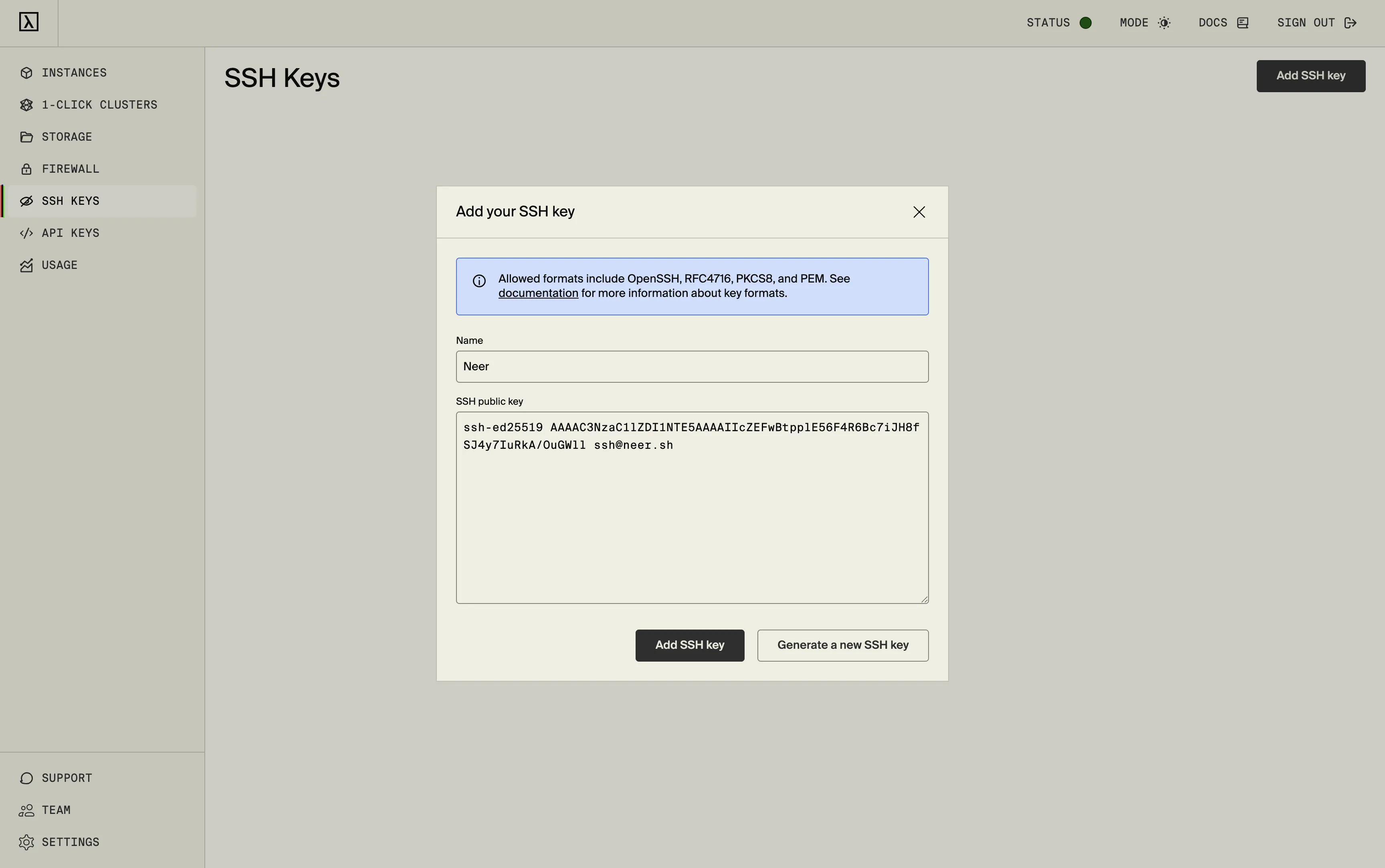
Go to SSH Keys in the Lambda dashboard and click Add SSH key. Paste OpenResearch's public key and give it a name (e.g. "OpenResearch"). Make sure to select this key when launching new instances.

text
ssh-ed25519 AAAAC3NzaC1lZDI1NTE5AAAAIIcZEFwBtpplE56F4R6Bc7iJH8fSJ4y7IuRkA/OuGWll [email protected]
Lambda SSH Keys page showing the Add SSH key dialog

On an existing instance

SSH into your instance and run:

bash
mkdir -p ~/.ssh && echo "ssh-ed25519 AAAAC3NzaC1lZDI1NTE5AAAAIIcZEFwBtpplE56F4R6Bc7iJH8fSJ4y7IuRkA/OuGWll [email protected]" >> ~/.ssh/authorized_keys

See SSH Keys for more details.

2. Get the SSH connection info

In the Lambda dashboard, find your instance and note its IP address. Lambda instances use the default SSH port (22) and the ubuntu user.

3. Add the instance in OpenResearch

Go to your project's Compute tab, click New Instance, and select Self-managed. Fill in the fields:

FieldValue
HostnameYour instance's IP address
PortLeave empty (defaults to 22)
Usernameubuntu

Once added, OpenResearch will connect to the instance and show it as online. You can then use it to run experiments.