
OpenResearch
RunPod with the CLI
Add a RunPod GPU pod to your SSH configuration, then select it as a compute target in the local orx dashboard.
1. Add your SSH key
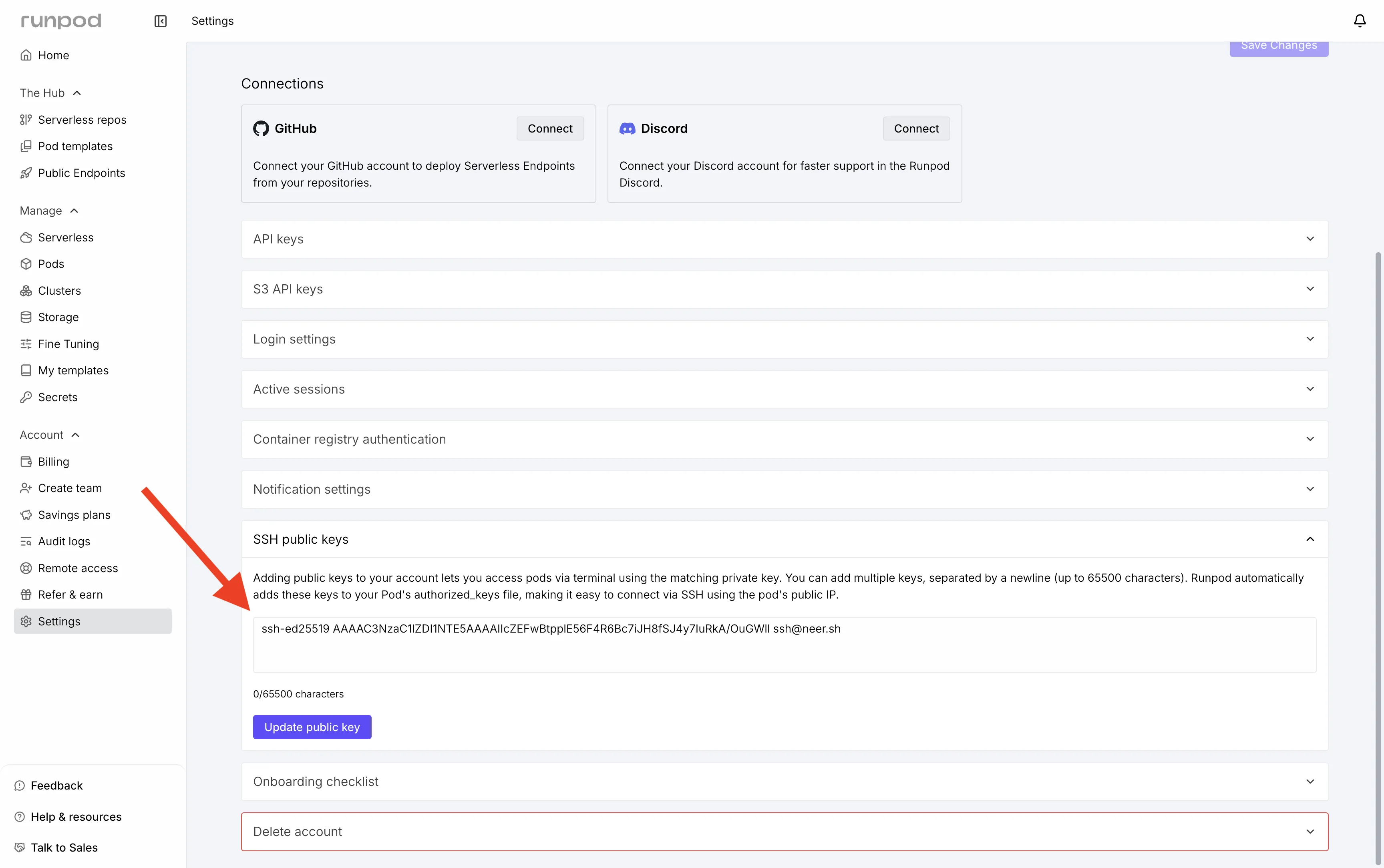
In the RunPod dashboard, open Settings > SSH public keys and add your computer's public key. RunPod applies it to new pods.
bash
cat ~/.ssh/id_ed25519.pub
2. Get the connection details
Open the pod's Connect tab and copy the SSH over exposed TCP hostname and port.
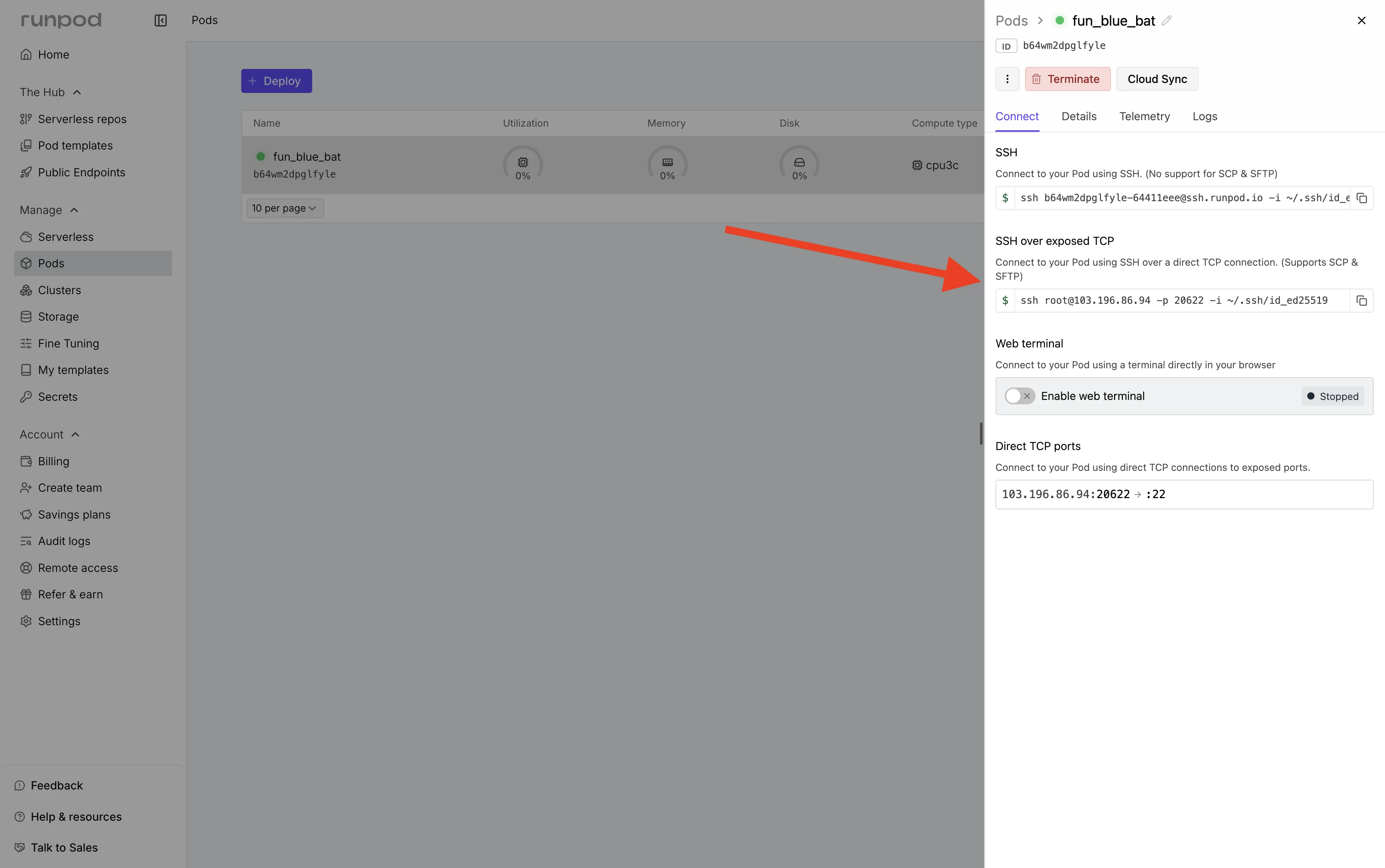
Important: Use the exposed TCP connection, not the ssh.runpod.io proxy.
3. Add an SSH alias
Add the pod to ~/.ssh/config using the hostname and port from RunPod:
text
Host runpod-gpu
  HostName <hostname>
  User root
  Port <port>
  IdentityFile ~/.ssh/id_ed25519
bash
ssh runpod-gpu
4. Select it in orx
Run orx up, then open Settings > Compute > SSH. Test runpod-gpu and make it the default compute target if desired. The machine needs git and bash.